
How To Install Yacine TV on
FireStick and Watch live TV Channels
“Your World of Sports & Entertainment – Live, Fast, Free”
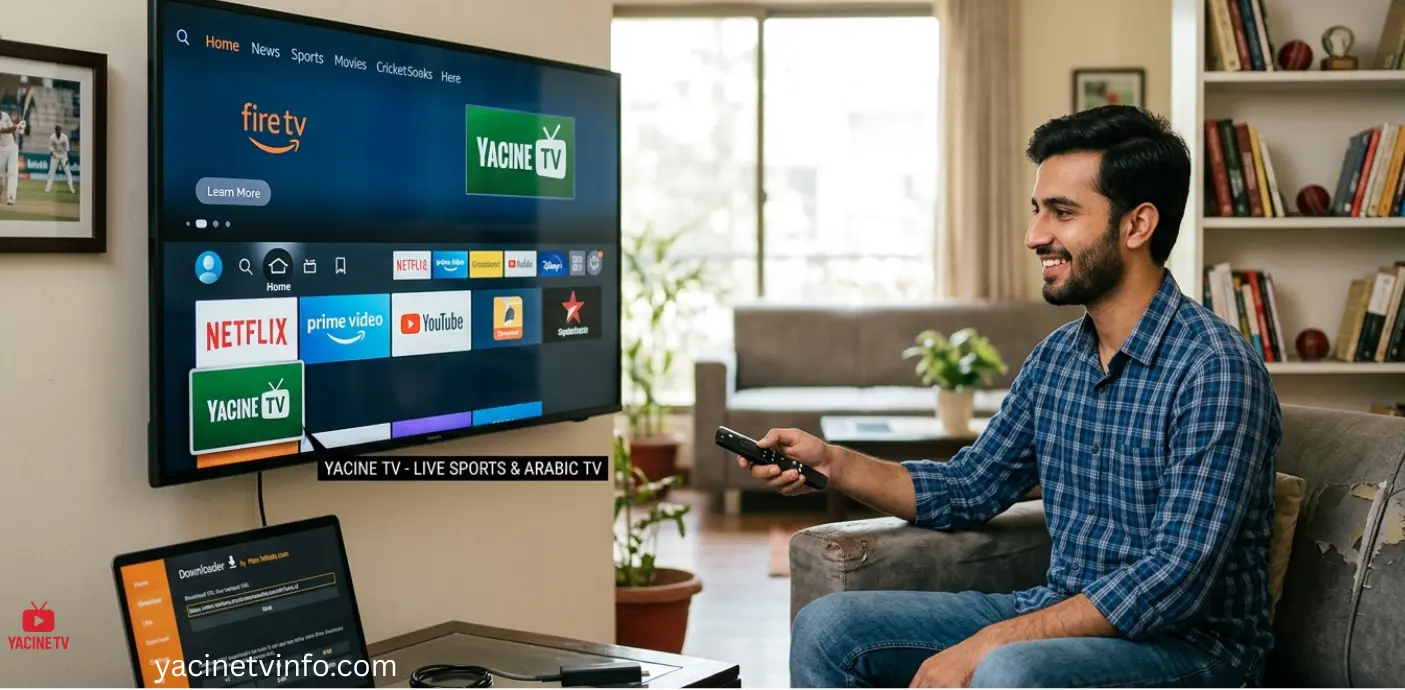
People search for Yacine TV on FireStick only to watch live sports channels or Arabic TV on a big screen instead of Android phone.I still remember the situation when people always asked me how you run app on TV for free.
At first, I also thought that installing Yacine TV on Amazon FireStick will be very easy. It was not that simple. By default, the FireStick doesn’t allow any third-party APK files, so the app simply refuses to install, if its settings are not adjusted.
Many people get stuck here. I was stuck too. The installation button just fades out and noting happened.
So if you are reading it only because the Yacine TV APK is not installing on FireStick, this issue only comes from FireStick security settings. If you handle these settings. It will work fluently.
Let me walk you through it on how to Install apk on FireStick.
Step 1 – Enable Apps from Unknown Sources
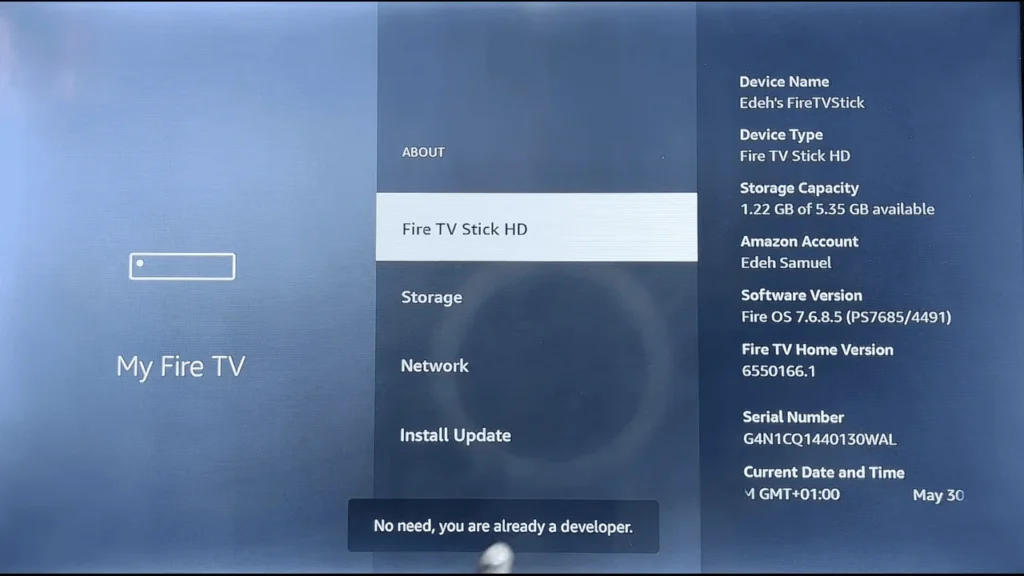
First Go to your profile icon and opened settings of FireStick. Then went to My Fire TV. Click on the “About” section.
In the FireStick newer models it is hidden, which is a little bit confusing. If that happens, click on the “Fire TV Stick HD” (name of your TV) several time it will unlock.
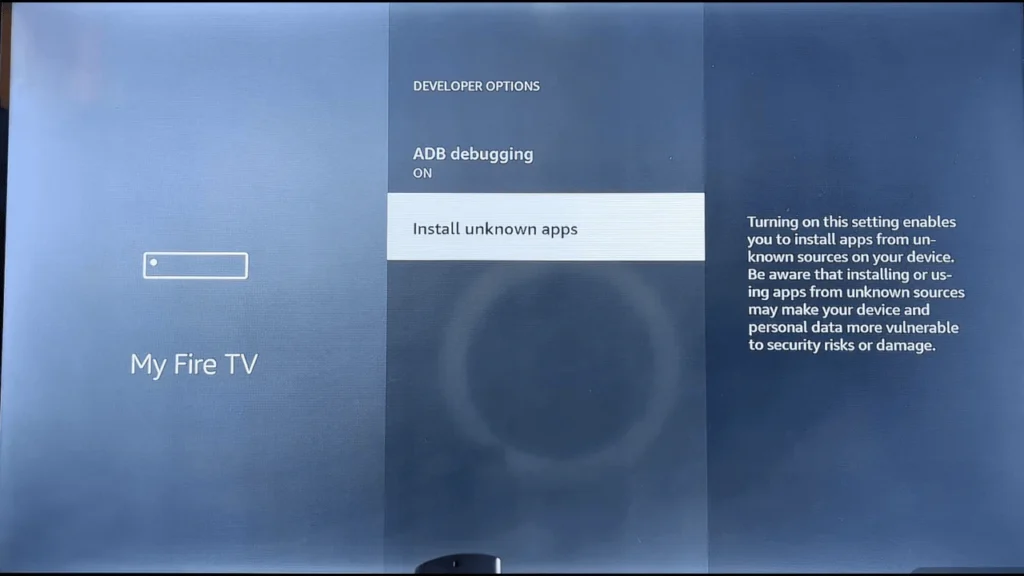
Once the Developer Options appear, enable it:
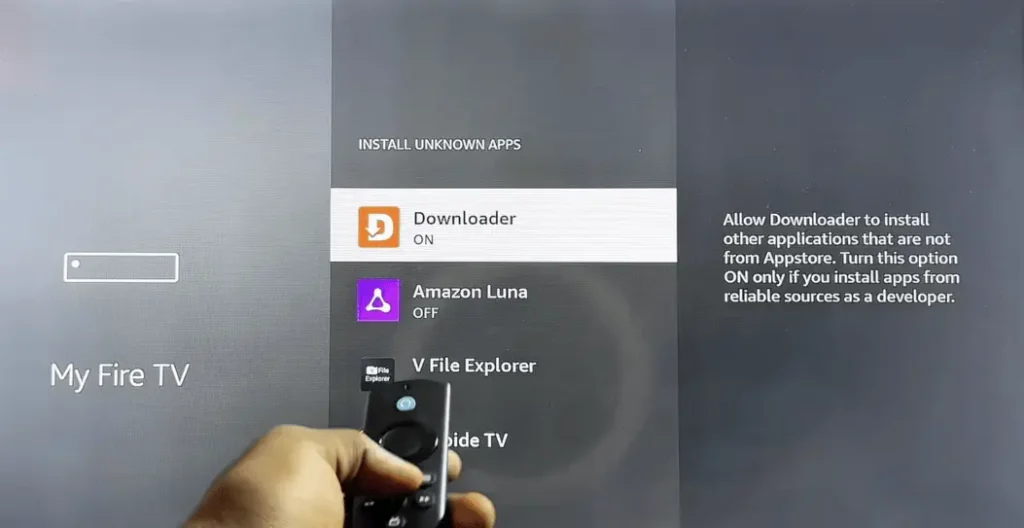
- Apps from Unknown Sources
- ADB Debugging
That simple change will allow third-party apps installation.Many beginners stop here only because the option seems

1st Step 2nd Step
Step 2 – Install the Downloader App
Next, I need a method to download the APK file.
The simplest method I found was using the Downloader app. It is available in the Amazon App Store.
By using FireStick search icon search Downloader.
Install it and open the app.
Downloader interface is very simple. It has a text box where you paste a download URL.
In this way Yacine TV APK file gets downloaded.
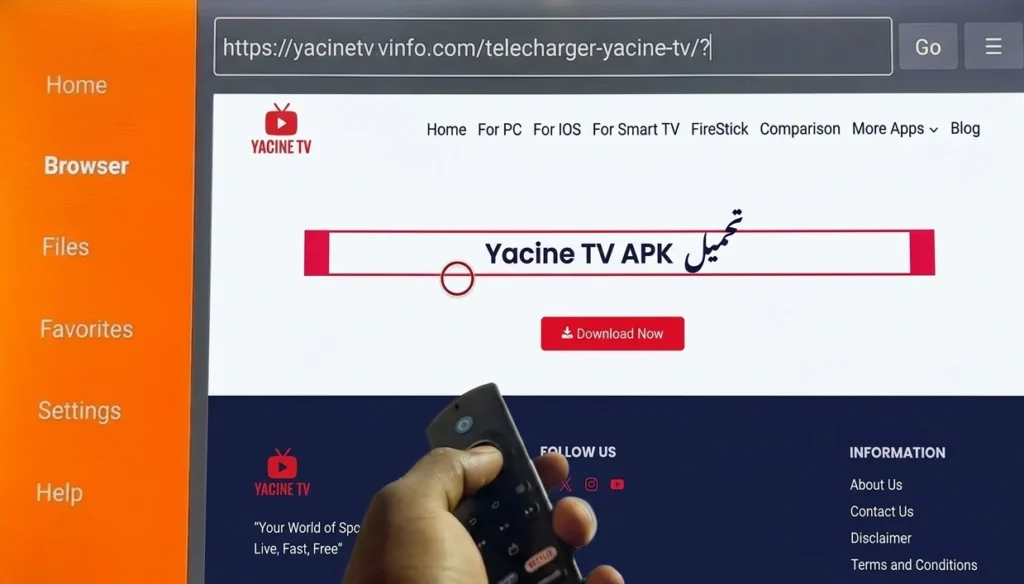
Step 3 – Download the Yacine TV APK file
Inside the Downloader app, I paste the download link for Yacine TV APK.
After clicking “Go,” the file is going to download.
For the first time when I tried this, I thought it froze because the progress bar stuck for a few seconds. But after sometimes it started moving.
If it pauses for some time, don’t be panic, it just normal.
When it get downloaded, FireStick automatically shows the installation screen.
Click Install.
Step 4 – Launch Yacine TV on FireStick
When installation is completed, the app appears in the Your Apps & Channels section.
You need to scroll down because newly apps sometimes sit at the bottom of the list.
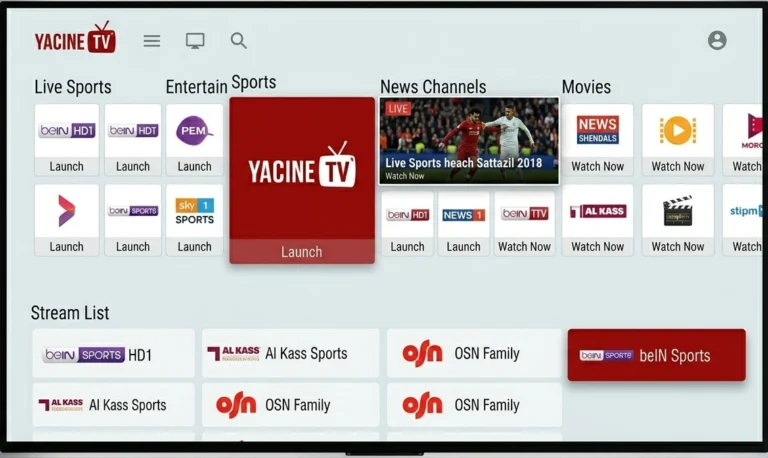
For the first time when you open the app it felt a bit odd because Yacine TV is design for mobile screens. But surprisingly, it still works perfectly with remote.
Channels are well organized into categories like:
- Sports
- News
- Kids
- Entertainment
Sports are its big used section. I hurriedly go to it like other people.
“Welcome to Yacine TV – Your Gateway to Entertainment!”
People search for Yacine TV on FireStick only to watch live sports channels or Arabic TV on a big screen instead of Android phone.I still remember the situation when people always asked me how you run app on TV for free.
At first, I also thought that installing Yacine TV on Amazon FireStick will be very easy. It was not that simple. By default, the FireStick doesn’t allow many third-party APK files, so the app simply refuses to install if its settings are not adjusted.
Many people get stuck here. I was stuck too. The installation button just fades out and noting happened.
So if you are reading it only because the Yacine TV APK is not installing on FireStick, this issue only comes from FireStick security settings. If you handle these settings. It will work fluently.
Let me walk you through it what I have learned from so much struggle.
Why People Use Yacine TV on FireStick
My first experience on opening Yacine TV on FireStick was very different compared to mobile. 6-inch phone screen and 50-inch TV screen have a massive difference.
Many users install Yacine TV on FireStick APK mainly for sports channels. Premier League, La Liga, Champions League….These are some channels people always search again and again.
According to a streaming usage, research published by Comcast 85% of Sports fans prefer watching live sport on TV rather than on a phone. This is not strange, big screen gives best experience.
Also, one report published that global video streaming market exceeded $100 billion, and it is expected to grow nearly 20% annually through 2030.
But here is on problem.
Yacine TV is not available in the Amazon App Store. So you have to install it manually using an APK file.
The First Mistake I Made When Installing It
My first try installing Yacine TV on FireStick failed completely. I download its file, but the system blocked it.
By default, FireStick blocks apps from unknown sources. It means this device trusts apps from Amazon store.
This is a high security features, but it stops many streaming apps.
So you must have to enable the Developer Options on the FireStick.
Without it, nothing works.
My First Streaming Experience
For the first time I tried streaming Football game. To make it sure about buffering issues.
But the result was mixed.
The first stream loaded within 6 seconds, which was great. After sometime, the stream paused quickly.
This buffering always occur when its server is very busy or internet speed drops.
Streaming expert recommended at least 10 Mbps internet speed for HD streams, and around 5 Mbps for standard quality. When my internet speed drop down from that level, then I will face with buffering issue.
If anyone comment that app “doesn’t work” it is your internet connection.
Tips That Helped Me Reduce Buffering
After testing it for sometimes, I found some tricks that improved my experience.
These are basic things but it gives me great help.
- Always select a lower resolution stream if your connection is not stable.
- Restart your FireStick, it sometimes clears your temporary cache issues.
- Use a wired internet adopter instead of Wi-Fi. Not everyone use such type of setup, but it works better for streaming.
Also, if you clear app cache once a while it will also give you great helps.
Better Alternatives I Tested on FireStick
I tried several streaming apps beside Yacine TV on FireStick. Majority of people didn’t even know free legal streaming services.
A few examples include:
- Tubi
- Pluto TV
- Plex
These apps give you hundred of free channels and work perfectly on FireStick devices.
Ads will be there, but the apps are stable and regularly updated.
Is Yacine TV Legal on FireStick?
This is the most common question asked by a lot of people.
The truth is little bit complex.
As Yacine TV itself is just a streaming app interface. But the channels it provides may not always have an official broadcasting in every region.
Due to this, the app is not available on any official stores like Amazon or Google Play Store. For this majority of people use VPN service that hides the IP address and encrypts internet traffic.
Cybersecurity studies have shown that around 31% of global internet users use VPN tools for streaming privacy.
I personally tested it with and without VPN it works just fine on both. But it highly depends on your internet connection and server crowd.
Common Problems People Face.
While installing Yacine TV on FireStick, Some common issues that people report us are:
App Not Installed error
This error occurs when an older version is already installed in your system. By removing your old version before installing new one will solve your problems.
Black screen when opening Channels
This error happened when app server is temporarily down. Waiting for a few minutes or switching streams will solve this issue.
Remote Control is not responding properly
This issue irritated me a bit, I will be honest with you some menu in Yacine TV on FireStick is design for touchscreen phones. Navigating with remote still works but need patience.
Is FireStick Good For Streaming Apps Like This?
As I used several streaming apps, I observe something. The Amazon FireStick is basically the best device for sideloading apk apps.
As compared to some smart TVs, it gives much control over installations.
The device has also high processing power for streaming apps. Even older models also run video playback very smoothly for most of the time.
On a survey conducted by Parks Associates showed that over 50 million households use Fire TV devices globally, this shows us why so many people search for FireStick tutorials. People love streaming apps on big screen.
And honestly, once the setup is done, it works perfectly fine.
Final Thoughts From My Experience
I thought that installing Yacine TV on FireStick will be very difficult. It turned out to me that it was all about adjusting the right settings.
In the installation process the hardest part was understanding the Developer Option and unknown sources setting. The rest steps are very easy.
Streaming quality highly depends on the internet speed and server load. Sometimes it works and sometimes it buffer.
FAQ’s

I am Usman, known as StreamSleuth – a Saudi based streaming app tester and the person behind YacineTVInfo.com. Since 2022 I have been installing, breaking and troubleshooting Yacine TV across Android phones, and troubleshooting Yacine TV across Android phones, Firestick, and Android TV boxes to write guides that actually work. Self-taught, hands-on, and allergic to copy-pasted device.